The Linux commands I use every day
The short list that covers most of my troubleshooting, plus a cheat sheet.
The short list that covers most of my troubleshooting, plus a cheat sheet.
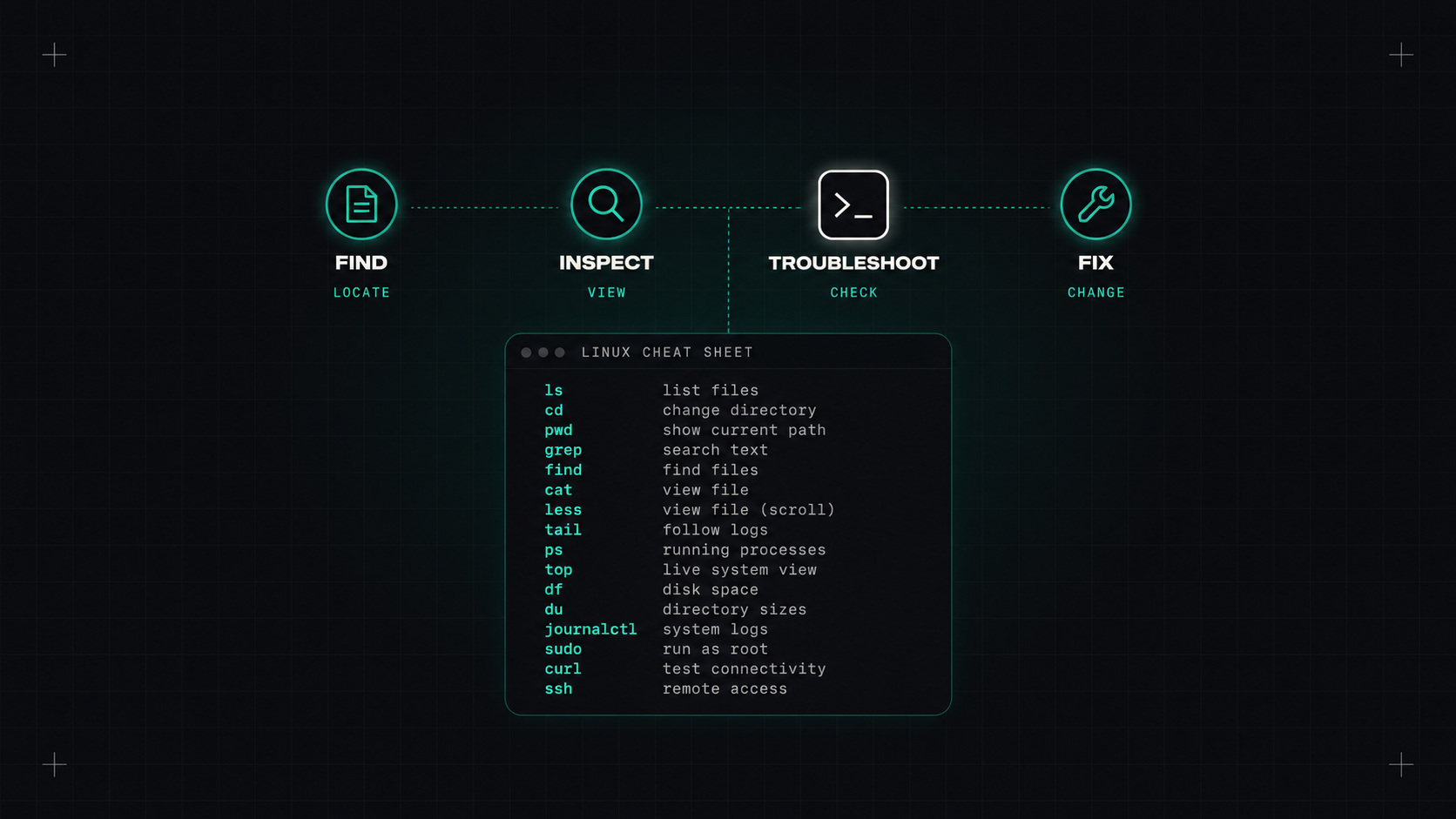
Kubernetes, cloud consoles and fancy dashboards are great. But when something is really wrong, sooner or later I end up in a terminal on a Linux machine, or inside a container, typing the same handful of commands I've used for years.
You don't need to know hundreds of commands. You need to know the right twenty or thirty very well. Here are mine.
What's running and using resources?
top                 # live view of CPU, memory and processes (press 1 for per-CPU, M to sort by memory)
htop                # friendlier version, if installed
ps aux --sort=-%mem | head   # top memory users
ps -ef | grep nginx          # find a specific process
pgrep -a java                # same, simpler
Services with systemd:
systemctl status nginx       # is it running? recent log lines too
systemctl restart nginx
systemctl list-units --failed   # what's broken?
journalctl -u nginx -f       # follow a service's logs
journalctl -u nginx --since "1 hour ago"
journalctl -p err -b         # all errors since last boot
Stopping things:
kill <pid>          # polite request to stop (SIGTERM)
kill -9 <pid>       # force (SIGKILL), only when the polite way fails
Out of disk space is one of the most common problems. These find it quickly:
df -h                        # free space per filesystem
df -i                        # free inodes (yes, you can run out of these too)
du -sh /var/* | sort -h      # which folders are big?
ncdu /var                    # interactive disk usage browser, if installed
lsof +L1                     # deleted files still held open (space not freed until process restarts)
Finding and reading files:
find /var/log -name "*.log" -mtime -1      # logs modified in the last day
find / -size +1G 2>/dev/null               # files larger than 1 GB
tail -f /var/log/syslog                    # follow a log
less +F app.log                            # follow, but can scroll back (Ctrl+C, then F again)
grep -ri "error" /var/log/app/             # search recursively, case-insensitive
grep -c "500" access.log                   # count matching lines
Most production problems are boring: a full disk, a crashed process, a wrong permission, a closed port. The commands that find boring problems fast are the most valuable ones.
free -h             # memory and swap usage
vmstat 1            # CPU, memory, swap, I/O every second
iostat -xz 1        # disk I/O per device (from sysstat)
uptime              # load average
dmesg -T | tail     # kernel messages, including OOM kills and hardware errors
A quick tip: free shows a lot of memory as "buff/cache". That's normal. Linux uses free memory for caching, and gives it back when needed. Look at "available" instead.
If a process is killed for using too much memory, dmesg -T | grep -i oom usually gives the details.
ip a                         # IP addresses of all interfaces
ip r                         # routing table
ss -tulpn                    # which ports are listening, and by which process
ss -tan state established    # active TCP connections
curl -v https://example.com  # full HTTP request with headers and TLS info
curl -o /dev/null -s -w "%{http_code} %{time_total}\n" https://example.com   # status and timing
dig example.com +short       # DNS lookup
dig @8.8.8.8 example.com     # ask a specific DNS server
nc -zv db.internal 5432      # is the port reachable?
mtr example.com              # traceroute and ping combined
tcpdump -i any port 443 -nn  # capture packets (needs root)
ss -tulpn alone answers half of all "why can't I connect?" questions: either nothing is listening on that port, or it's listening on 127.0.0.1 instead of all interfaces.
whoami && id                 # who am I, what groups?
sudo -l                      # what am I allowed to run with sudo?
ls -la                       # permissions, owners, hidden files
chmod 640 file && chown app:app file
namei -l /path/to/file       # permissions of every directory along a path
namei -l is a hidden gem when a service can't read a file and you can't see why: often it's a parent directory without execute permission.
awk '{print $1}' access.log | sort | uniq -c | sort -rn | head   # top client IPs
cut -d: -f1 /etc/passwd                                         # first field
sed -n '100,120p' big.log                                       # lines 100 to 120
jq '.items[].metadata.name'                                     # parse JSON
wc -l file                                                      # count lines
Learning awk, sort, uniq and jq turns log files into answers.
Ctrl+R searches your command history.!! repeats the last command (sudo !! when you forgot sudo).tmux or screen keep sessions alive if your connection drops.watch -n 2 'kubectl get pods' reruns a command every two seconds.man and tldr for quick help with examples.| Problem | First commands |
|---|---|
| Service down | systemctl status, journalctl -u <svc> -n 100 |
| Disk full | df -h, du -sh /* \| sort -h, lsof +L1 |
| High CPU | top, ps aux --sort=-%cpu \| head |
| Out of memory | free -h, dmesg -T \| grep -i oom |
| Can't connect | ss -tulpn, nc -zv host port, curl -v |
| DNS issues | dig name, cat /etc/resolv.conf |
| Slow disk | iostat -xz 1, vmstat 1 |
| Permission denied | id, ls -la, namei -l path |
| What happened at boot | journalctl -b -p err, dmesg -T |
My take: tools come and go, but the Linux command line is still where problems finally confess. Learn these well and you'll feel at home on any server.
— Desly