Why one AWS account isn't enough
Landing zones and multi-account setups, explained.
Landing zones and multi-account setups, explained.
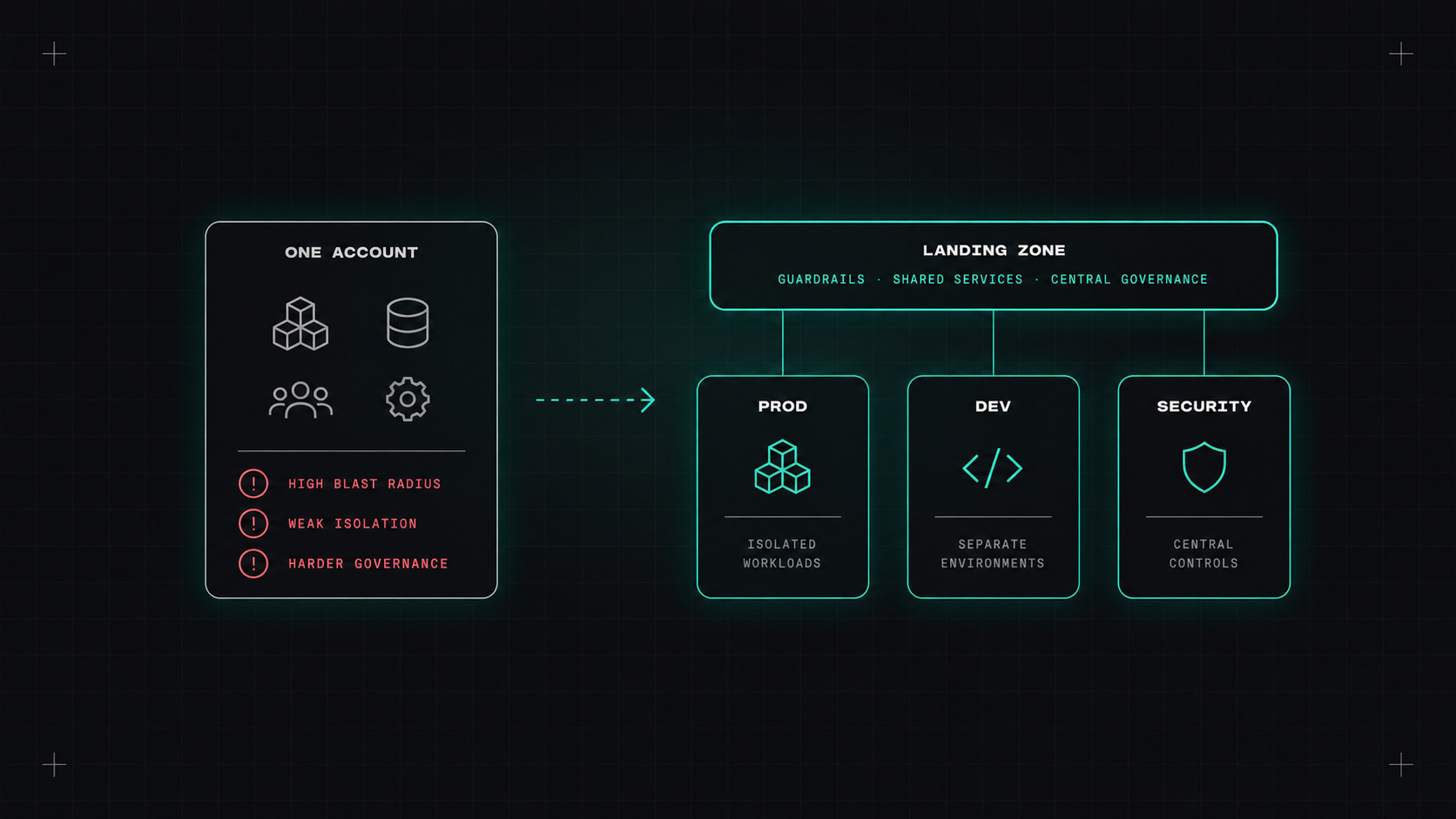
Most AWS journeys start the same way. Someone creates an account with a company credit card, launches a few things, and it works. Then more teams arrive, production and testing share the same account, someone has admin rights who shouldn't, and nobody can tell which resources belong to which project.
The fix is a multi-account setup, usually called a landing zone. It sounds like enterprise bureaucracy, but it's one of the best investments a growing company can make in AWS. (Azure and Google Cloud have similar concepts, which I'll cover at the end.)
An AWS account is the strongest isolation boundary AWS offers. Separate accounts give you:
AWS Organizations lets you manage many accounts centrally and group them into Organizational Units (OUs):
Root (management account: billing and organisation only)
├── Security OU
│   ├── Log Archive      (central, immutable logs)
│   └── Security Tooling (GuardDuty, Security Hub, audit access)
├── Infrastructure OU
│   ├── Network          (Transit Gateway, shared networking, DNS)
│   └── Shared Services  (CI/CD, container registry)
├── Workloads OU
│   ├── Prod OU
│   │   ├── shop-prod
│   │   └── search-prod
│   └── Non-Prod OU
│       ├── shop-staging
│       └── shop-dev
└── Sandbox OU
    └── personal and experiment accounts (with budgets)
Key rules: don't run workloads in the management account, and keep logs in a separate account that workload teams can't modify.
Accounts are cheap. Untangling a single shared account later is very expensive.
AWS Organizations provides the hierarchy, consolidated billing and policies.
Service Control Policies (SCPs) are guardrails applied to OUs or accounts. They define the maximum permissions anyone in those accounts can have, even administrators. Examples:
{
  "Version": "2012-10-17",
  "Statement": [{
    "Sid": "DenyOutsideEU",
    "Effect": "Deny",
    "NotAction": ["iam:*", "organizations:*", "sts:*", "support:*", "cloudfront:*", "route53:*"],
    "Resource": "*",
    "Condition": {
      "StringNotEquals": { "aws:RequestedRegion": ["eu-central-1", "eu-west-1"] }
    }
  }]
}
(Global services are excluded because they're served from US regions.)
AWS has also added Resource Control Policies for guardrails on resources, and declarative policies for enforcing service configurations across accounts.
AWS Control Tower automates setting up a landing zone: it creates the core accounts (log archive, audit), configures guardrails, and offers an Account Factory to create new accounts with a standard baseline. It's the quickest way to start. For more customisation, many teams use Account Factory for Terraform (AFT) or manage accounts entirely with Terraform.
Don't create IAM users in each account. Use IAM Identity Center (formerly AWS SSO) connected to your company identity provider (Entra ID, Okta, Google Workspace):
aws sso login).Accounts are isolated by default, so networking needs a plan:
Applied automatically to every new account:
The concepts are the same: a hierarchy, isolation per environment and team, central guardrails, central logging and identity.
If you're still in one account, set up AWS Organizations and Control Tower now, create separate production and non-production accounts, and move new workloads there. Migrate old workloads gradually. If you already have many accounts, check that SCPs, central logging and Identity Center are in place.
My take: a landing zone is the foundation of your cloud house. It's boring to build, and you'll be grateful for it every day afterwards.
— Desly